
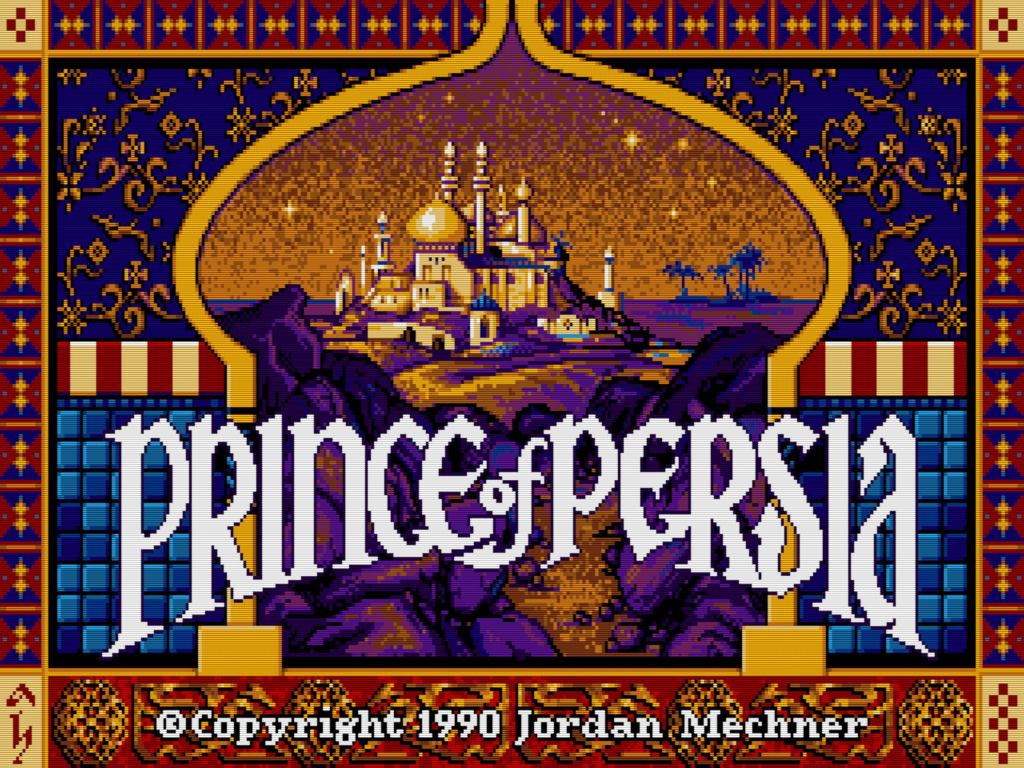
SDLPoP is an open-source port of the original DOS Prince of Persia, based on a disassembly of the game and rebuilt using the SDL2 library. Created by David “NagyD” and contributors, the project preserves the original gameplay while adding modern conveniences like:
- Fullscreen support
- Gamepad compatibility
- Quicksave and replay features
- Modding support
This makes SDLPoP the best way to experience the original game on modern Linux desktops.
Original DOS vs. SDLPoP (SDL2 Port)
| Feature | Original DOS (1989) | SDLPoP (SDL2 Port) |
|---|---|---|
| Platform | MS-DOS PCs | Modern Linux, Windows, macOS |
| Graphics | 320×200 CGA/EGA/VGA | Scaled resolution, fullscreen support |
| Sound | PC Speaker / AdLib | SDL2 audio, stereo sound |
| Controls | Keyboard only | Keyboard + Gamepad support |
| Save System | Password codes | Quicksave / Quickload |
| Replay Feature | None | Replay recording & playback |
| Modding | Not supported | Mods folder, custom levels |
| Accessibility | Requires DOSBox today | Native build, easy compile with SDL2 |
| Community Updates | Frozen since 1990s | Actively maintained on GitHub |
Installing SDL2 and Compiling SDLPoP on Ubuntu
Step 1: Installing the Required Libraries
sudo apt updatesudo apt install build-essential gitsudo apt install libsdl2-dev libsdl2-image-dev libsdl2-mixer-dev libsdl2-ttf-dev
Ubuntu Packages Explained
| Package | Purpose | Why It’s Needed |
|---|---|---|
| build-essential | Meta-package that installs GCC (GNU Compiler Collection), make, and other core tools for compiling software. | Provides the compiler and build tools required to compile SDLPoP from source. |
| git | Version control system for managing source code. | Used to clone the SDLPoP repository from GitHub. |
| libsdl2-dev | Development headers and libraries for SDL2 (Simple DirectMedia Layer). | Core library that SDLPoP uses for graphics, input, and window management. |
| libsdl2-image-dev | SDL2 extension for loading and manipulating images (PNG, JPG, etc.). | Enables SDLPoP to load textures and sprites beyond raw bitmap formats. |
| libsdl2-mixer-dev | SDL2 extension for audio mixing and playback. | Provides sound effects and music playback in the game. |
| libsdl2-ttf-dev | SDL2 extension for rendering TrueType fonts. | Allows SDLPoP to display text (menus, HUD, etc.) using modern font rendering. |
Step 2: Clone the SDLPoP Repository
git clone https://github.com/NagyD/SDLPoP.gitcd SDLPoP
Step 3: Compile the Game
cd srcmake
Step 4: Run the Game
cd .../prince
This post was written with ❤️ and ☕️
 The Reboot Diaries